In computing, a keyboard shortcut is a set of one or more keys that invoke a command in software or an operating system.
They are typically an alternate means for invoking commands that would otherwise be accessible only through a menu, a mouse, or an aspect of the user interface. These shortcuts can expedite common operations by reducing input sequences to a few keystrokes.
These shortcuts can provide an easier and quicker method of using computer programs. These commands are commonly accessed by using the Alt ket (on PC computers), command key (on Apple computers), Ctrl, and Shift in conjunction with a single letter.
These shortcuts are for the following programs and applications.
- Word
- Windows
- Internet Explorer
- File Explorer
- Windows System Commands
- Firefox
- Excel
- Mac
- Finder
- Chrome
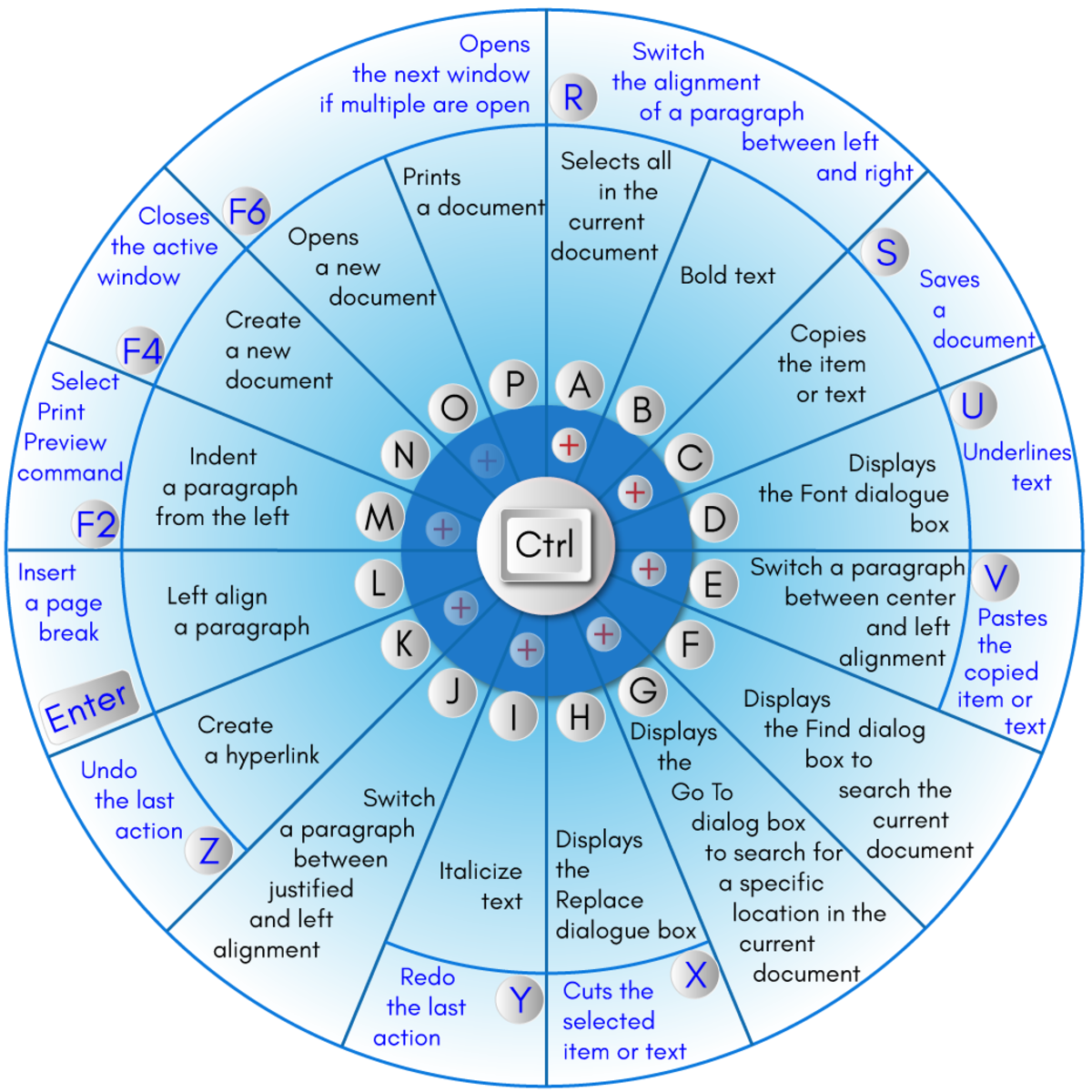
Shortcut Keys in Microsoft Word
- F1 key: Get help on a selected command or use the Office assistant.
- Shift and F1 Key: Review text formatting.
- F2 Key: Move text or image.
- Shift + F2 Key: Copy text.
- F3 Key: Insert an autotext entry.
- Shift + F3 Key: Change the case of the selected text.
- F4 Key: Perform last action again.
- Shift + F4 Key: Perform a Find or Go To action again.
- F5 Key: Displays the Go To dialogue box. You can also get to Find and Replace from here.
- Shift + F5 Key: Move to a previous revision.
- F6 Key: Go to the next frame or pane.
- Shift + F6 Key: Go to the previous frame or pane.
- F7 Key: Launch the Spell Checker.
- Shift + F7 Key: Launch the Thesaurus.
- F8 Key: Extend the current selection.
- Shift + F8 Key: Shrink the current selection.
- F9 Key: Refresh.
- Shift + F9 Key: Switch between a field code and its result.
- F10 Key: Show KeyTips.
- Shift + F10 Key: Display a Shortcut Menu (same as right-clicking).
- F11 Key: Go to the next field.
- SHIFT + F11 Key: Go to the previous field.
- F12 Key: Open Save As, equivalent to tools menu.
- Shift + F12 Key: Save document, equivalent to tools menu.
- Ctrl and A: Selects all in the current document.
- Ctrl and B: Bold text.
- Ctrl and C: Copies the item or text.
- Ctrl and D: Displays the Font dialogue box.
- Ctrl and E: Switch a paragraph between center and left alignment.
- Ctrl and F: Displays the Find dialog box to search the current document.
- Ctrl and G: Displays the Go To dialog box to search for a specific location in the current document.
- Ctrl and H: Displays the Replace dialogue box.
- Ctrl and I: Italicize text.
- Ctrl and J: Switch a paragraph between justified and left alignment.
- Ctrl and K: Create a hyperlink.
- Ctrl and L: Left align a paragraph.
- Ctrl and M: Indent a paragraph from the left.
- Ctrl and N: Create a new document.
- Ctrl and O: Opens a new document.
- Ctrl and P: Prints a document.
- Ctrl and R: Switch the alignment of a paragraph between left and right.
- Ctrl and S: Saves a document.
- Ctrl and U: Underlines text.
- Ctrl and V: Pastes the copied item or text.
- Ctrl and X: Cuts the selected item or text.
- Ctrl and Y: Redo the last action.
- Ctrl and Z: Undo the last action.
- Ctrl and Enter: Insert a page break.
- Ctrl and F2: Select Print Preview command.
- Ctrl and F4: Closes the active window.
- Ctrl and F6: Opens the next window if multiple are open.
Windows Shortcut Keys
- Windows Key + R: Opens the Run menu.
- Windows Key + E: Opens Explorer.
- Alt + Tab: Switch between open programs.
- Windows Key + Up Arrow: Maximize current window.
- Ctrl + Shift + Esc: Open Task Manager.
- Windows Key + Break: Opens system properties.
- Windows Key + F: Opens search for files and folders.
- Windows Key + D: Hide/display the desktop.
- Alt + Esc: Switch between programs in order they were opened.
- Alt + Letter: Select menu item by underlined letter.
- Ctrl + Esc: Open Start menu.
- Ctrl + F4: Close active document (does not work with some applications).
- Alt + F4: Quit active application or close current window.
- Alt + Spacebar: Open menu for active program.
- Ctrl + Left or Right Arrow: Move cursor forward or back one word.
- Ctrl + Up or Down Arrow: Move cursor forward or back one paragraph.
- F1: Open Help menu for active application.
- Windows Key + M: Minimize all windows.
- Shift + Windows Key + M: Restore windows that were minimized with previous keystroke.
- Windows + F1: Open Windows Help and Support.
- Windows + Tab: Open Task view.
- Windows + Break: Open the System Properties dialog box.
- Hold Right SHIFT key for eight seconds: Switch FilterKeys on and off.
- Left Alt + Left Shift + Print Screen: Switch High Contrast on and off.
- Left Alt + Left Shift + Num Lock: Switch Mouse keys on and off.
- Press Shift five times: Switch Sticky keys on and off.
- Hold Num Lock for five seconds: Switch Toggle keys on and off.
Internet Explorer Shortcut Keys
- Alt + Left Arrow/Backspace: Go back to the previous page.
- Alt + Right Arrow: Go to next page.
- F5: Refresh page.
- F11: Toggle between full-screen and regular view.
- Esc: Stop downloading a page.
- Ctrl + ( + or -): Zoom in or out of page by 10%.
- Ctrl + Enter: Adds www. at the beginning and .com to the end of any text entered in the Address bar.
- Ctrl + D: Add the current site to your favorites.
- Ctrl + I: View your favorites.
- Ctrl + N: Open a new window.
- Ctrl + P: Print the current page.
- Ctrl + T: Open a new tab.
- Ctrl + F4: Closes tabs in the background.
- Ctrl + Tab: Switch between tabs.
- Spacebar: Click the notification bar.
- Shift + Spacebar: Move up one page.
- Alt + Down Arrow: Move a selected item down the favorites list.
File Explorer Shortcuts
- End: Display bottom of current window.
- Home: Display top of current window.
- Left Arrow: Collapse the current selections or select a parent folder.
- Right Arrow: Display the current selection or select the first subfolder.
Windows System Commands
Type the following commands in your Run dialogue box (Windows Key + R) to run specific programs.
- devmgmt.msc: Device Manager
- msinfo32: System Information
- cleanmgr: Disk Cleanup
- ntbackup: Backup or restore Wizard (Windows Backup Utility)
- mmc: Microsoft Management Console
- excel: Microsoft Excel (if installed)
- msaccess: Microsoft Access (if installed)
- powerpnt: Microsoft PowerPoint (if installed)
- winword: Microsoft Word (if installed)
- frontpg: Microsoft FrontPage (if installed)
- notepad: Notepad
- wordpad: WordPad
- calc: Calculator
- msmsgs: Windows Messenger
- mspaint: Microsoft Paint
- wmplayer: Windows Media Player
- rstrui: System restore
- control: Opens the Control Panel
- control printers: Opens the printers dialogue box
- cmd: Command Prompt
- iexplore: Internet Explorer
- compmgmt.msc: Computer Management
- dhcpmgmt.msc: DHCP Management
- dnsmgmt.msc: DNS Management
- services.msc: Services
- eventvwr: Event Viewer
- dsa.msc: Active Directory Users and Computers
- dssite.msc: Active Directory Sites and Services
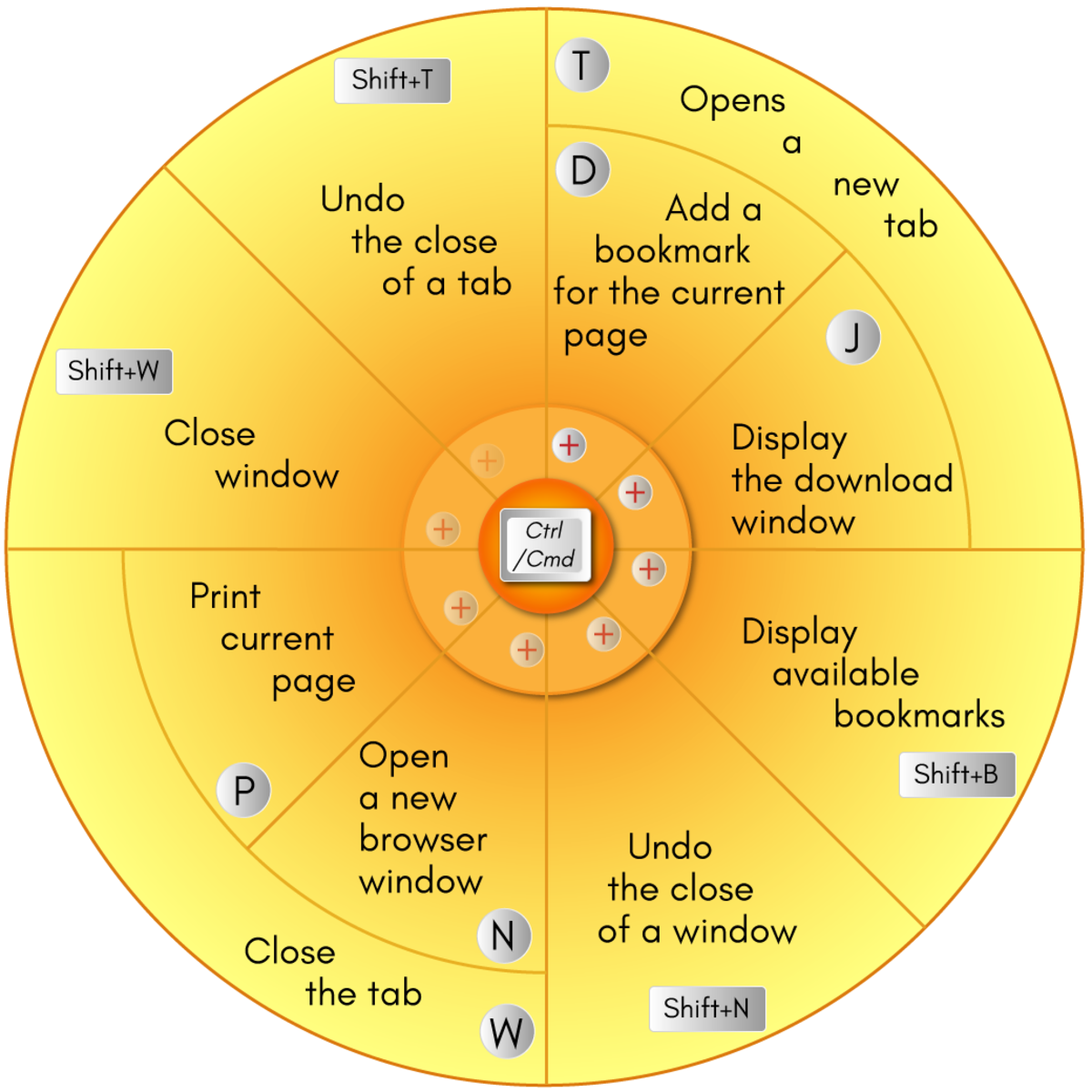
Firefox Keyboard Shortcuts
Command
|
Mac OS
|
Windows
|
|---|---|---|
Go back a page.
|
Command + Left Arrow
|
Alt + Left Arrow
|
Go forward a page.
|
Command + Right Arrow
|
Alt + Right Arrow
|
Reload current page.
|
F5
|
F5
|
Toggle between full screen and regular screen.
|
Command + Shift + F
|
F11
|
Stop page from loading.
|
Esc
|
Esc
|
Complete a .com address.
|
Command + Return
|
Ctrl + Enter
|
Complete a .net address.
|
Shift + Return
|
Shift + Enter
|
Complete a .org address.
|
Command + Shift + Return
|
Ctrl + Shift + Enter
|
Clear recent history.
|
Command + Shift + Delete
|
Ctrl + Shift + Delete
|
Add a bookmark for the current page.
|
Command + D
|
Ctrl + D
|
Display available bookmarks.
|
Command + Shift + B
|
Ctrl + Shift + B
|
Display the download window.
|
Command + J
|
Ctrl + J
|
Open a new browser window.
|
Command + N
|
Ctrl + N
|
Print current page.
|
Command + P
|
Ctrl + P
|
Opens a new tab.
|
Command + T
|
Ctrl + T
|
Close the tab.
|
Command + W
|
Ctrl + W
|
Close window.
|
Command + Shift + W
|
Ctrl + Shift + W
|
Undo the close of a window.
|
Command + Shift + N
|
Ctrl + Shift + N
|
Undo the close of a tab.
|
Command + Shift + T
|
Ctrl + Shift + T
|
Moves through each of the open tabs.
|
Ctrl + Tab
|
Ctrl + Tab
|
Go to bottom of page.
|
Command + Down Arrow
|
End
|
Go to top of page.
|
Command + Up Arrow
|
Home
|
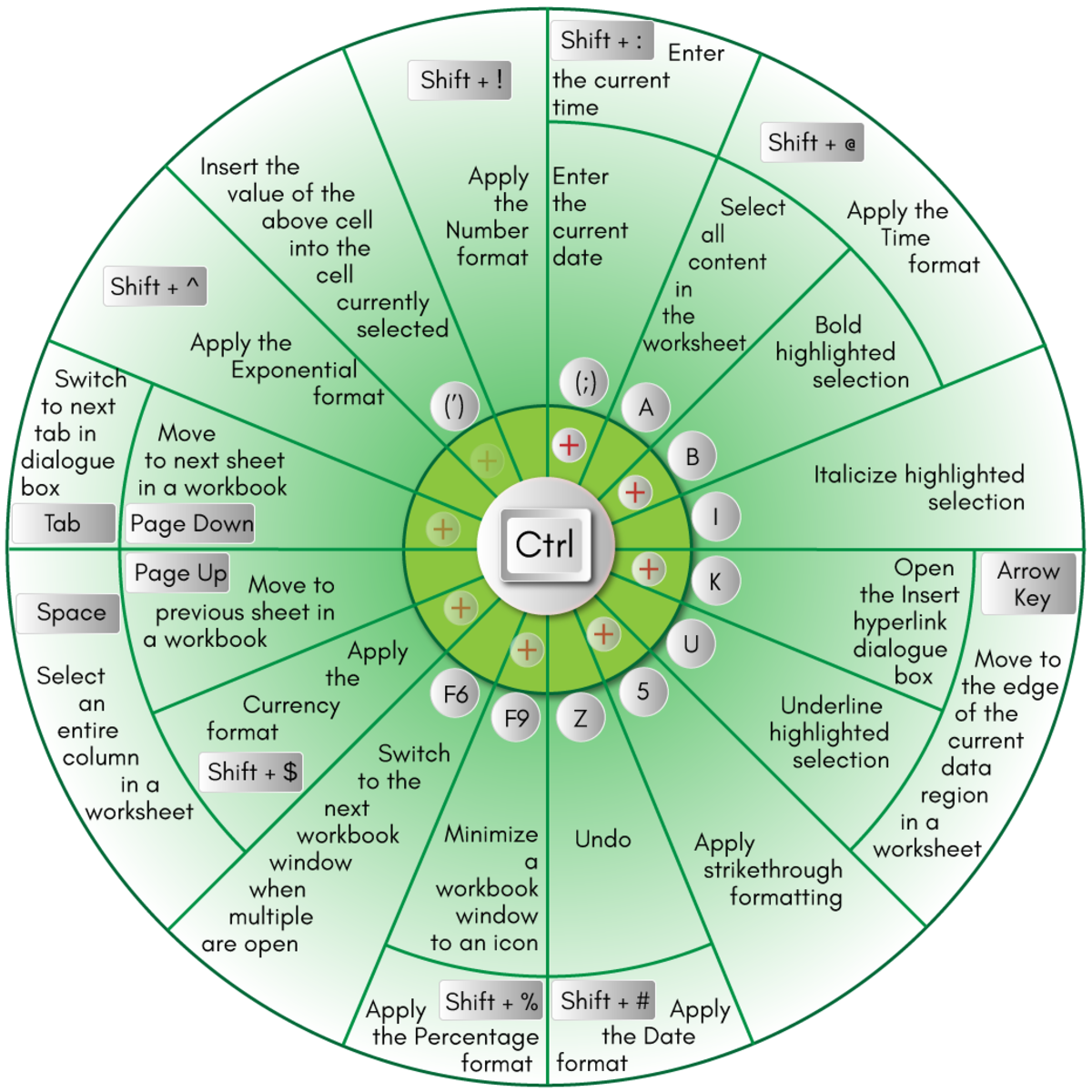
Microsoft Excel Shortcut Keys
- F2: Edit the active cell.
- F5: Displays the Go To box.
- F7: Open the Spelling dialogue box to check a selected range.
- F11: Create a chart of data in the current range in a separate sheet.
- Alt + Shift + F1: Insert a new worksheet.
- Shift + F3: Opens Insert Function dialogue box.
- Shift + F5: Opens the Find and Replace dialogue box.
- Ctrl + Shift + Colon (:): Enter the current time.
- Ctrl + Semicolon (;): Enter the current date.
- Ctrl + A: Select all content in the worksheet.
- Ctrl + B: Bold highlighted selection.
- Ctrl + I: Italicize highlighted selection.
- Ctrl + K: Open the Insert hyperlink dialogue box.
- Ctrl + U: Underline highlighted selection.
- Ctrl + 5: Apply strikethrough formatting.
- Ctrl + P: Brings up the print dialog box.
- Ctrl + Z: Undo.
- Ctrl + F9: Minimize a workbook window to an icon.
- Ctrl + F10: Maximize a selected workbook window.
- Ctrl + F6: Switch to the next workbook window when multiple are open.
- Ctrl + Page Up: Move to previous sheet in a workbook.
- Ctrl + Page Down: Move to next sheet in a workbook.
- Ctrl + Tab: Switch to next tab in dialogue box.
- Ctrl + Apostrophe ('): Insert the value of the above cell into the cell currently selected.
- Ctrl + Shift + !: Apply the Number format.
- Ctrl + Shift + $: Apply the Currency format.
- Ctrl + Shift + #: Apply the Date format.
- Ctrl + Shift + %: Apply the Percentage format.
- Ctrl + Shift + ^: Apply the Exponential format.
- Ctrl + Shift + @: Apply the Time format.
- Ctrl + Arrow Key: Move to the edge of the current data region in a worksheet.
- Ctrl + Space: Select an entire column in a worksheet.
- Shift + Space: Select an entire row in a worksheet.
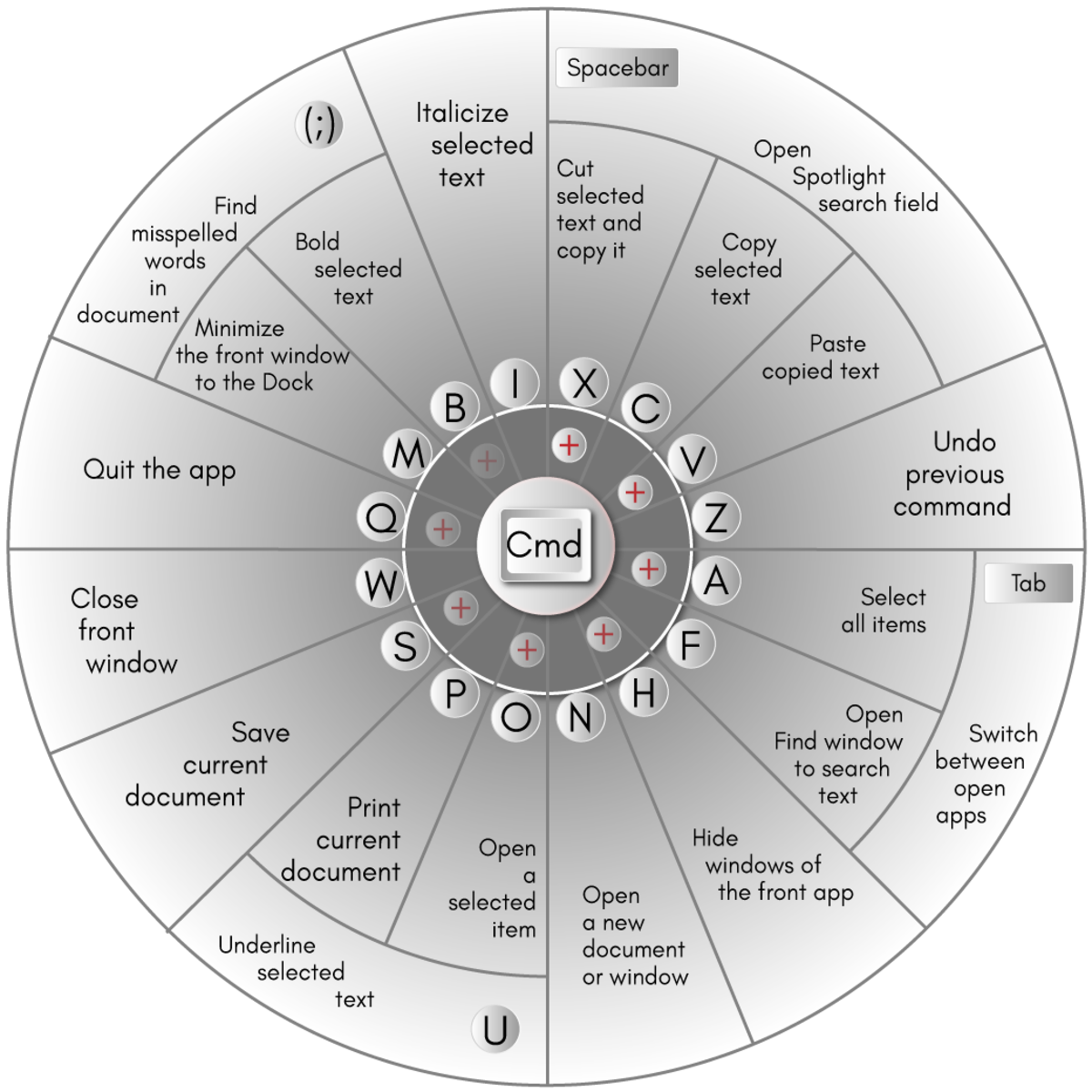
Shortcuts for Mac
- Command + X: Cut selected text and copy it.
- Command + C: Copy selected text.
- Command + V: Paste copied text.
- Command + Z: Undo previous command.
- Command + A: Select all items.
- Command + F: Open Find window to search text.
- Command + H: Hide windows of the front app.
- Command + N: Open a new document or window.
- Command + O: Open a selected item.
- Command + P: Print current document.
- Command + S: Save current document.
- Command + W: Close front window.
- Command + Q: Quit the app.
- Command + M: Minimize the front window to the Dock.
- Command + Spacebar: Open Spotlight search field.
- Command + Tab: Switch between open apps.
- Command + B: Bold selected text.
- Command + I: Italicize selected text.
- Command + U: Underline selected text.
- Command + Semicolon (;): Find misspelled words in document.
- Option + Command + Esc: Choose an app to force quit.
- Shift + Command + Tilde (~): Switch between open windows.
- Shift + Command + 3: Take a screenshot.
- Fn + Up Arrow: Scroll up one page.
- Fn + Down Arrow: Scroll down one page.
- Fn + Left Arrow: Scroll to beginning of document.
- Fn + Right Arrow: Scroll to end of document.
Finder Shortcuts
- Shift + Command + F: Open All My Files window.
- Shift + Command + K: Open Network window.
- Option + Command + L: Open Downloads folder.
- Shift + Command + O: Open documents folder.
- Shift + Command + U: Open Utilities folder.
- Option + Command + D: Show or hide the Dock.
- Shift + Command + N: Create a new folder.
- Command + Delete: Move selected item to the Trash.
- Shift + Command + Delete: Empty Trash.
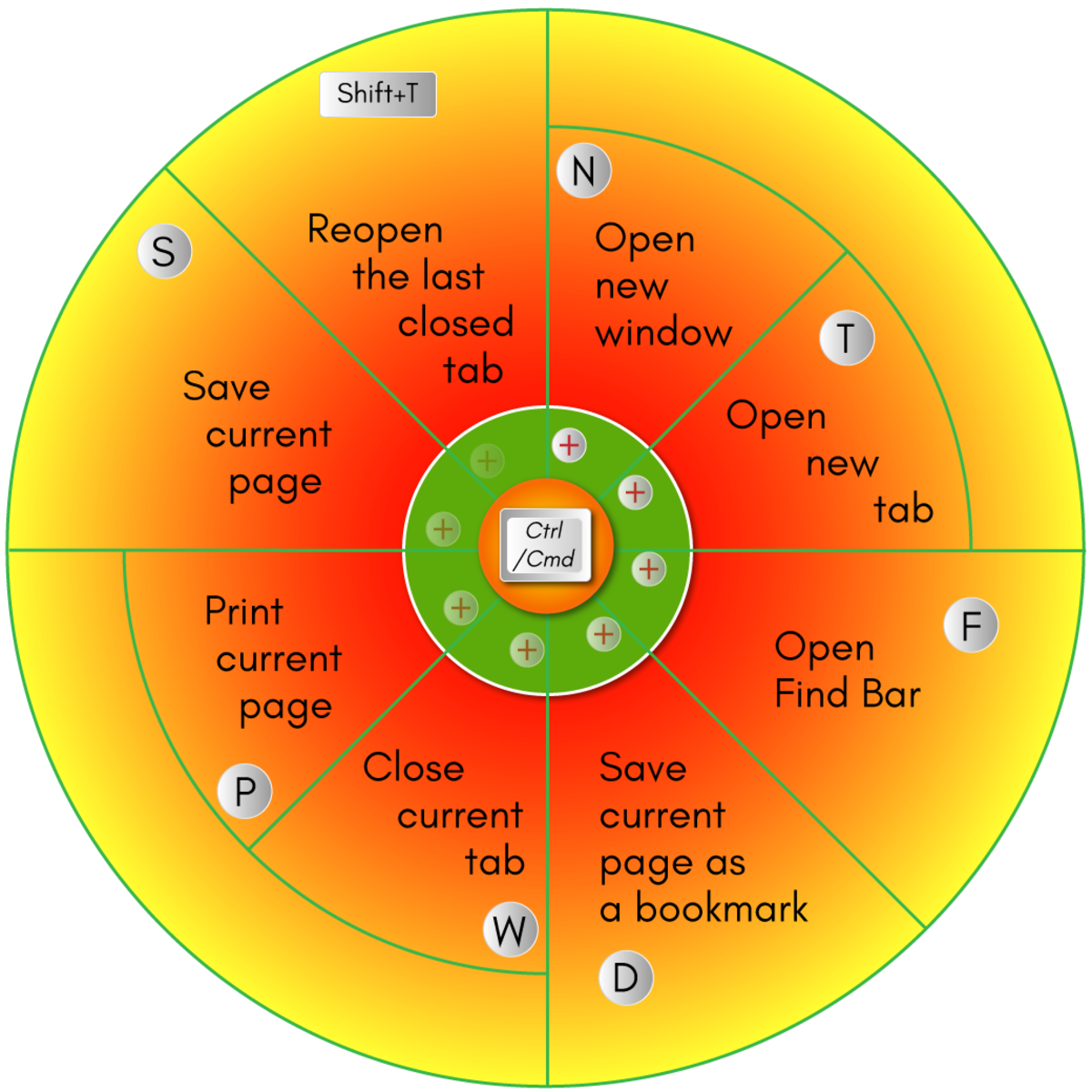
Chrome Keyboard Shortcuts
Command
|
MacOS
|
Windows
|
|---|---|---|
Open new window.
|
Command + N
|
Ctrl + N
|
Open new tab.
|
Command + T
|
Ctrl + T
|
Reopen the last closed tab.
|
Command + Shift + T
|
Ctrl + Shift + T
|
Move to next tab.
|
Command + Option + Right Arrow
|
Ctrl + Tab
|
Move to previous tab.
|
Command + Option + Left Arrow
|
Ctrl + Shift + Tab
|
Open previous page in browsing history.
|
Command + [
|
Alt + Left Arrow
|
Open next page in browsing history.
|
Command + ]
|
Alt + Right Arrow
|
Close current tab.
|
Command + W
|
Ctrl + W
|
Close current window.
|
Command + Shift + W
|
Alt + F4
|
Open Bookmarks Manager.
|
Command + Option + B
|
Ctrl + Shift + O
|
Open History page.
|
Command + Y
|
Ctrl + H
|
Open Downloads page.
|
Command + Shift + J
|
Ctrl + J
|
Open Find Bar.
|
Command + F
|
Ctrl + F
|
Print current page.
|
Command + P
|
Ctrl + P
|
Save current page.
|
Command + S
|
Ctrl + S
|
Reload current page.
|
Command + R
|
F5
|
Save current page as a bookmark.
|
Command + D
|
Ctrl + D
|


